실제 프로젝트에서는 사용자에게 다크 모드와 라이트 모드를 제공하는 것이 중요한 UX 요소 중 하나이다.
styled-components와 ThemeProvider를 활용하면 전역 테마 전환을 매우 간단하게 구현할 수 있다.
✅ 1. 테마 객체 정의하기
// themes.js
export const lightTheme = {
  textColor: "#111",
  backgroundColor: "whitesmoke",
};

export const darkTheme = {
  textColor: "whitesmoke",
  backgroundColor: "#111",
};
✅ 2. App에서 테마 상태 관리
여러개의 property를 가진 객체를 두개 (다크/라이트) 설정함으로써 간편하게 theme을 바꿀 수 있다.
// App.js
import React, { useState } from "react";
import styled, { ThemeProvider } from "styled-components";
import { lightTheme, darkTheme } from "./themes";

const Title = styled.h1`
  color: ${(props) => props.theme.textColor};
`;

const Wrapper = styled.div`
  display: flex;
  flex-direction: column;
  gap: 20px;
  height: 100vh;
  width: 100vw;
  justify-content: center;
  align-items: center;
  background-color: ${(props) => props.theme.backgroundColor};
  transition: all 0.3s ease-in-out;
`;

const ToggleButton = styled.button`
  padding: 10px 20px;
  font-weight: bold;
  border: none;
  cursor: pointer;
  background-color: ${(props) => props.theme.textColor};
  color: ${(props) => props.theme.backgroundColor};
  border-radius: 8px;
`;

function App() {
  const [isDark, setIsDark] = useState(true);
  const toggleTheme = () => setIsDark((prev) => !prev);

  return (
    <ThemeProvider theme={isDark ? darkTheme : lightTheme}>
      <Wrapper>
        <Title>{isDark ? "Dark Mode" : "Light Mode"}</Title>
        <ToggleButton onClick={toggleTheme}>
          Toggle Theme
        </ToggleButton>
      </Wrapper>
    </ThemeProvider>
  );
}

export default App;
✅ 결과 화면
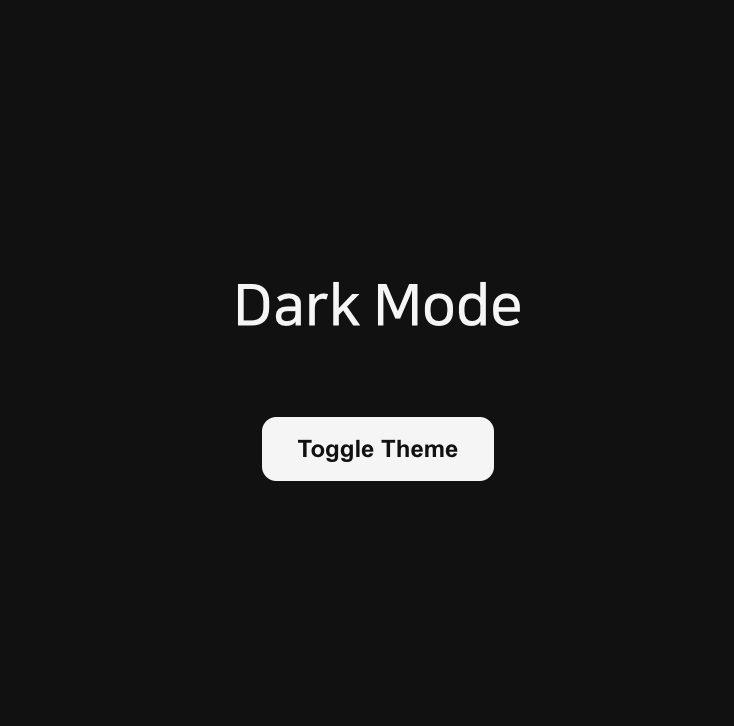
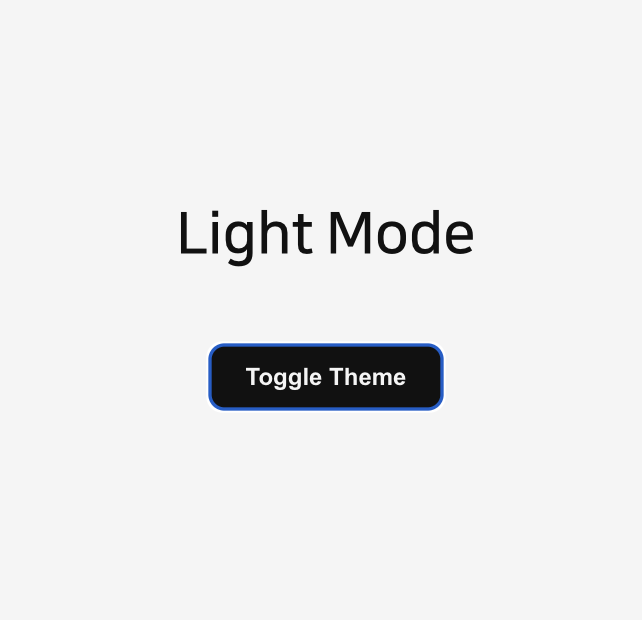
- 기본은 다크 모드 (isDark = true)
- 버튼을 누르면 라이트 모드로 전환됨
- ThemeProvider는 상태에 따라 lightTheme 또는 darkTheme을 전달
🔧 ThemeProvider 작동 원리
✅ 1. React Context를 기반으로 동작한다
styled-components의 ThemeProvider는 내부적으로 React Context API를 사용해 테마를 관리한다.
<ThemeProvider theme={currentTheme}>
	<App />
</ThemeProvider>
이렇게 감싸면 ThemeProvider는 theme 객체를 Context로 저장하고, 하위의 모든 styled component는 그 값을 props.theme을 통해 자동으로 주입받는다.
✅ 2. styled-components는 내부적으로 ThemeContext를 사용한다
styled-components는 ThemeContext라는 내부 컨텍스트를 만들고, ThemeProvider로 전달받은 theme을 여기에 저장한다.
// (내부적으로는 대략 이런 형태)
const ThemeContext = React.createContext(defaultTheme);
export const ThemeProvider = ({ theme, children }) => {
	return <ThemeContext.Provider value={theme}>{children}</ThemeContext.Provider>;
};
✅ 3. styled component는 theme context에 접근하여 props.theme으로 넣어준다
모든 styled 컴포넌트는 생성될 때 ThemeContext를 자동으로 구독하고, 렌더링 시 theme 값을 props.theme으로 넣어준다.
const Title = styled.h1`
	color: ${(props) => props.theme.textColor};
`;
→ 여기서 props.theme.textColor는 ThemeProvider를 통해 전달된 값이다.
→ 만약 ThemeProvider가 없으면 props.theme는 undefined다.
✅ 일단 styled-component 로 한번 만들어보긴 했지만..
- localStorage에 사용자의 테마 선호 저장하여 유지하기
- 시스템 설정에 따른 다크모드 자동 적용 (window.matchMedia)
실유저가 있는 서비스에서는 위의 두가지 방법으로 구현하는게 좋을듯.
React + Styled-components로 구현한 테마 시스템은 확장성도 좋고, 유지보수도 쉽다.
다크모드 버튼을 넣고 싶다면 이 구조를 기반으로 시작해보자!
'Frontend > 🌐 React' 카테고리의 다른 글
| useState는 어떻게 값을 기억하는가 (리액트 코드로 Fiber 구조와 렌더링 살펴보기) (2) | 2026.05.13 |
|---|---|
| Styled Components - 애니메이션, 컴포넌트 선택자, 중첩 스타일링 (0) | 2025.03.26 |
| Styled Component에서 컴포넌트 확장하기 (0) | 2025.03.26 |
| React validation 리액트 유효성 검사 Formik VS REACT Hook form (0) | 2023.01.12 |
| react iframe에 의해 클릭 안되는 문제 해결 (0) | 2023.01.06 |
댓글